Syncing Optional Fields via the AnyWare Apps Integration

Sage 300 User Guide: Syncing Optional Fields via the AnyWare Apps Integration

When you’re working with Sage 300 and RAMP, consistency between systems is key. With the AnyWare Apps Connector, you can create and sync new optional fields seamlessly ensuring your accounting data stays accurate and unified across platforms.

Here we’ll walk through how to create an optional field in Sage 300 and see it automatically appear in RAMP.

Step 1: Create an Optional Field in Sage 300

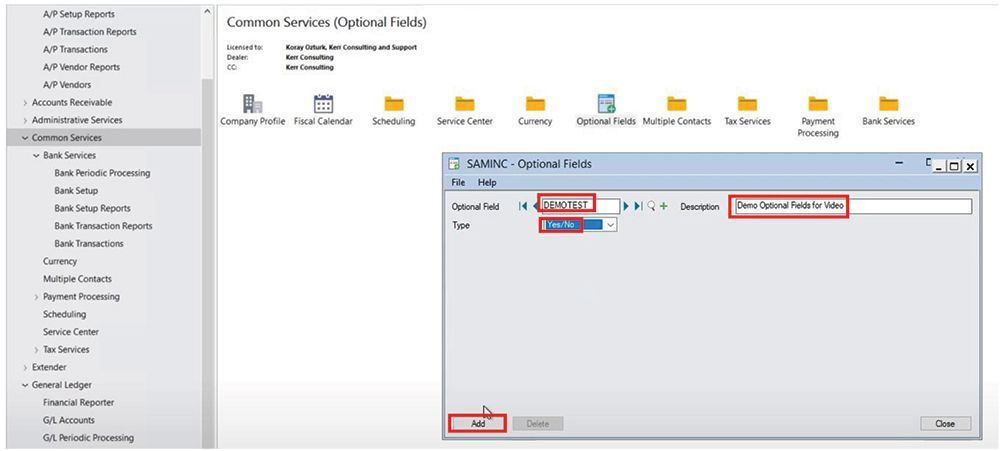
Start by navigating to Common Services → Optional Fields in Sage 300. From there:

  1. Create a new optional field named Demo Test.
  2. Add a description such as Demo Optional Field for Video.
  3. Set the type to Yes/No.
  4. Click Add, then Save.

That’s it — your new optional field is now configured in Sage 300.

Step 2: View the Synced Field in RAMP

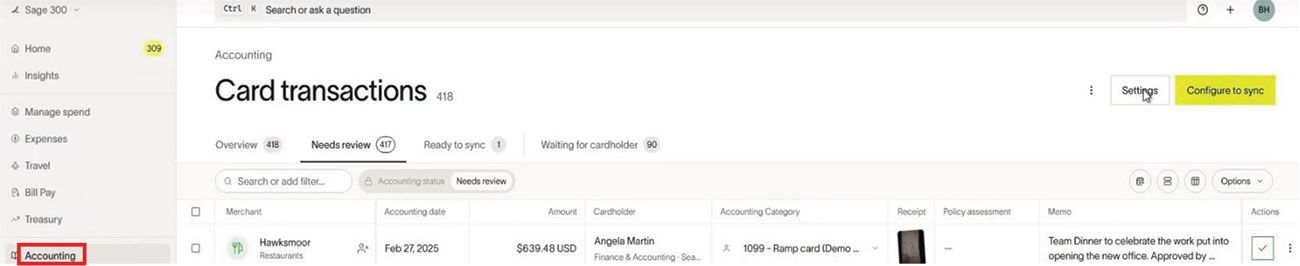
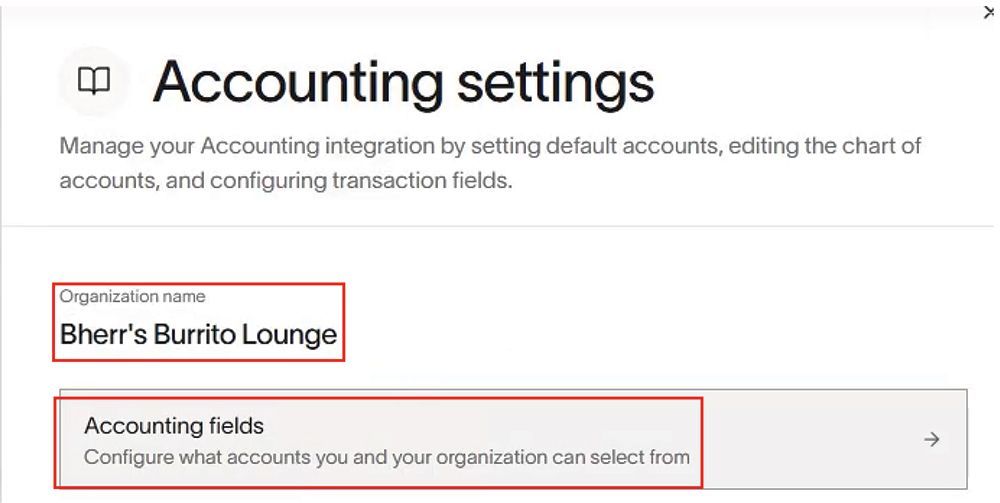
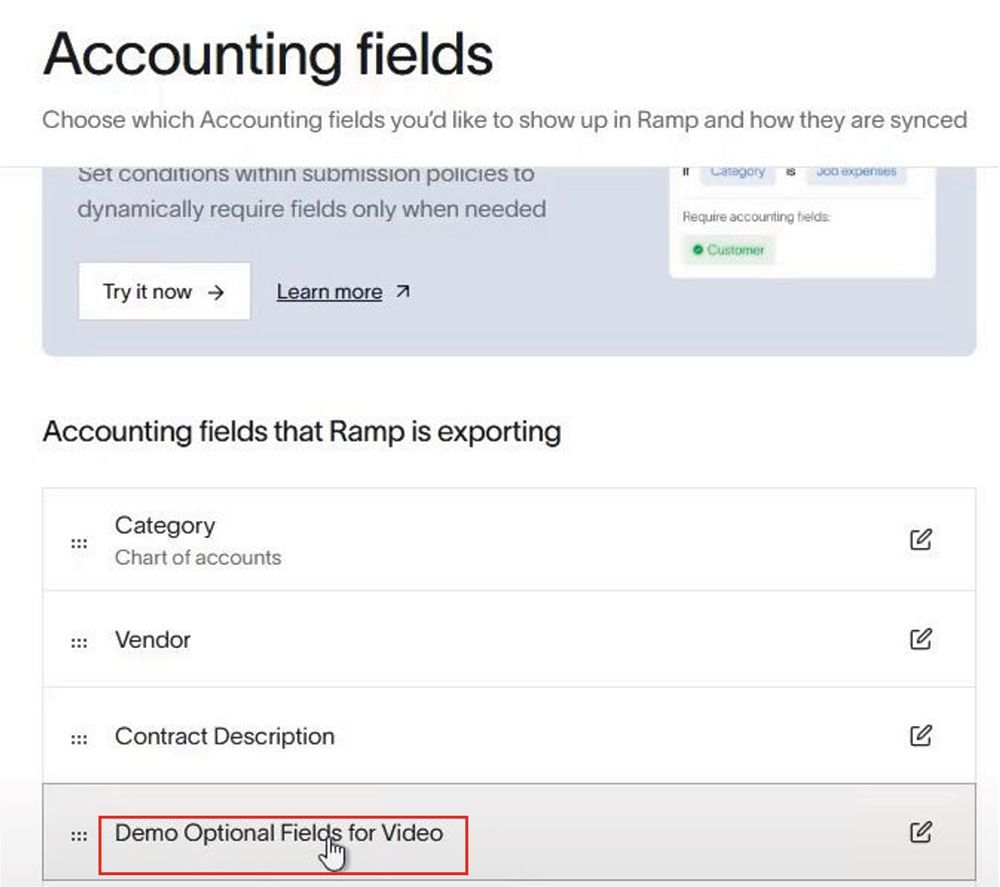
Next, open RAMP and navigate to: Accounting Settings Accounting Fields.

You’ll see your new Demo Optional Field for Video has already synced from Sage 300 via the AnyWare Apps Connector. No manual exports, no double entry — just instant synchronization between systems.
Why It Matters

This seamless data sync between Sage 300 and RAMP saves time, reduces errors, and ensures everyone across your organization is working with the same up-to-date information. It’s just one more example of how AnyWare Apps helps you get more value out of your existing accounting tools.

Articles 📑
November 24, 2025
Sage 300 User Guide: How to Edit a GL Account in Sage 300 and Sync Changes to RAMP with AnyWare Apps Connector
November 24, 2025
Sage 300 User Guide: How to Process Manual Payments in Sage 300 and RAMP Simultaneously via the AnyWare Apps Integration
November 12, 2025
Sage 300 User Guide: Syncing Payments for Ramp to Sage 300 With AnyWare Apps Integration
November 12, 2025
Sage 300 User Guide: Creating Vendors in Sage 300 and Syncing to Ramp with AnyWare Apps Integration
November 3, 2025
User Guide

Videos ▶️

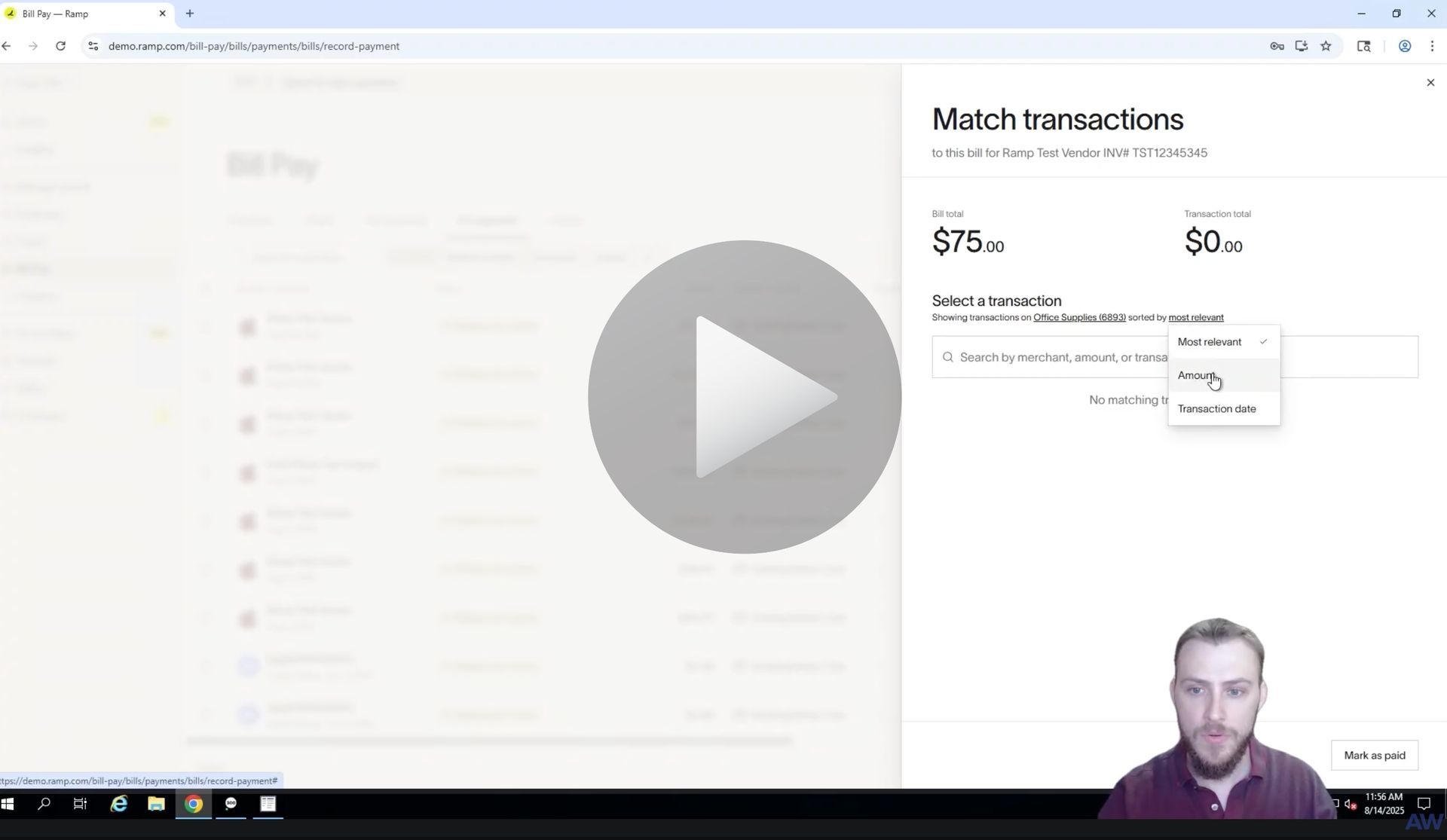
Man demonstrating software with an open window displaying data entry fields.
By Brennen Herr October 16, 2025
Learn how to create a vendor in Sage 300 and automatically sync it to RAMP with the AnyWare Apps Connector. Simplify vendor management and keep systems in sync.
Man demonstrates Sage 300 ERP integration to Ramp Software - How to Sync Payments
By Brennen Herr October 16, 2025
See how to make a payment in RAMP and automatically sync it to Sage 300 using the AnyWare Apps Connector. Simplify bill pay and eliminate manual entry with seamless integration.
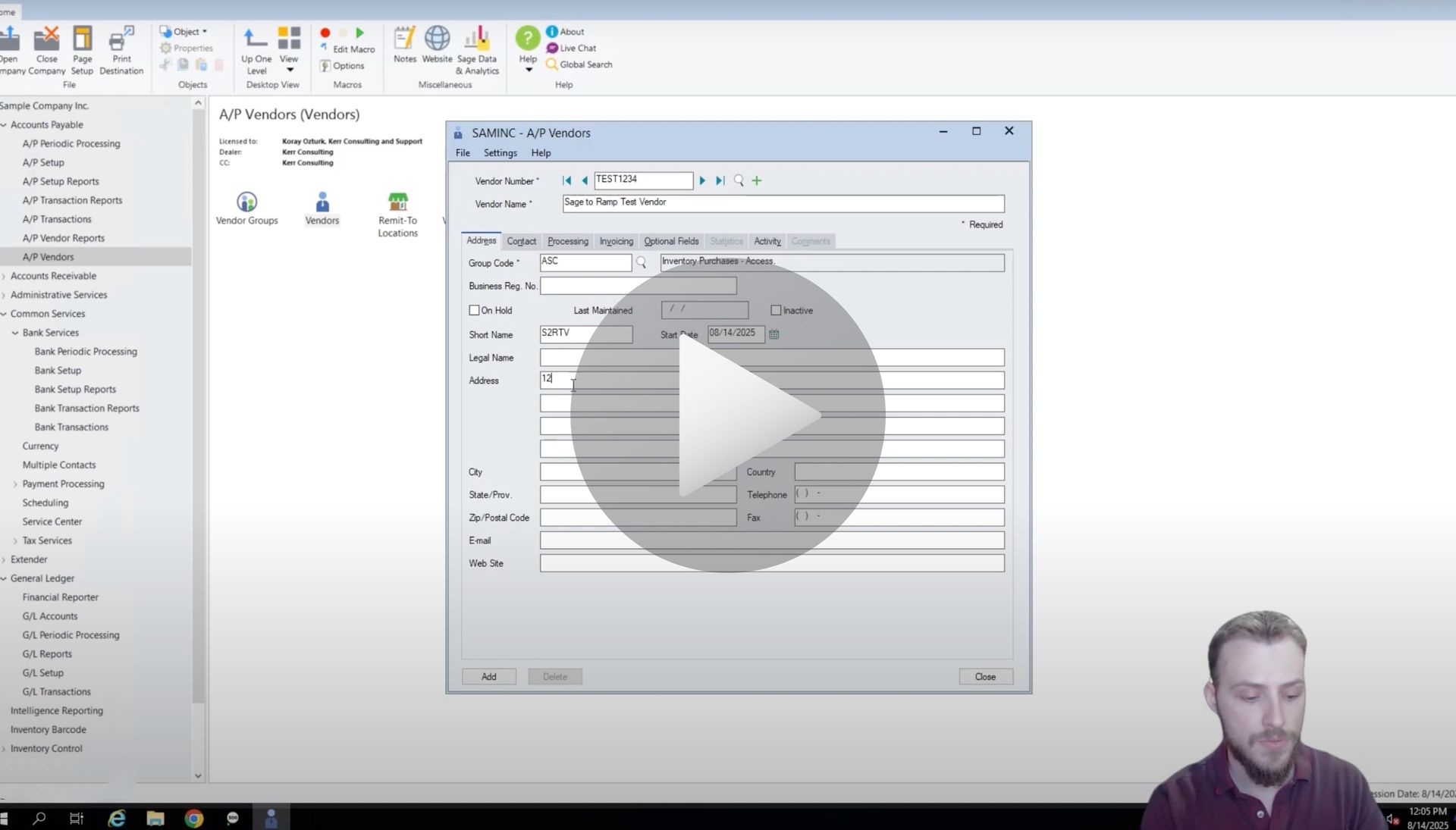
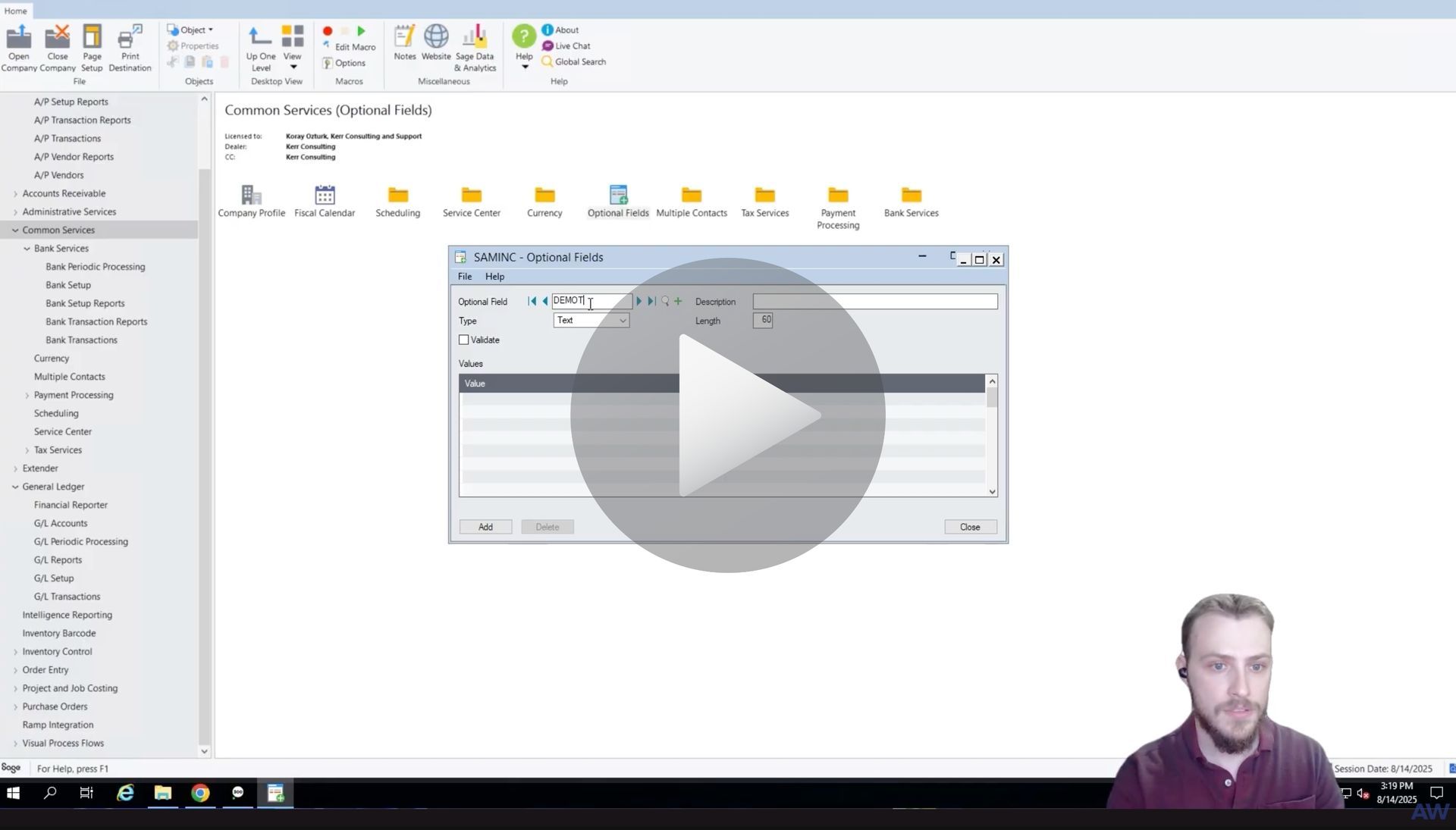
Man looking at a computer screen displaying a software window; a form is open.
By Brennen Herr October 16, 2025
Learn how to create and sync optional fields from Sage 300 to RAMP using the AnyWare Apps Connector. Streamline your accounting workflow with seamless, real-time data integration.
By Brendan Herr September 8, 2025
How to Process Manual Payments in Sage 300 and RAMP Simultaneously via the AnyWare Apps Integration
By Brennan Herr August 25, 2025
How to Edit a GL Account in Sage 300 and Sync Changes to RAMP with AnyWare Apps Connector
By Brennan Herr August 12, 2025
Sync RAMP credit card transactions to Sage 300 effortlessly with Anywhere Apps. Categorize and transfer expenses for accurate, automated financial management.
By Brennan Herr August 12, 2025
Simplify bill payments with RAMP and Sage 300 integration. Create, approve, and sync bills effortlessly using Anywhere Apps for accurate accounts payable.
By Brennan Herr August 12, 2025
Streamline vendor management with RAMP and Sage 300 integration. Learn to create and sync vendors seamlessly using Anywhere Apps for efficient accounts payable.
ramp financial corporate credit card software integration to Sage 300 accounting ERP solution

Time is money.

Book your discovery call with AnyWare Apps

Sage 300 Discovery Request

Our Solution for Your Accounting

Our integration streamlines your financial workflows by directly integrating credit card transactions, employee reimbursements, and vendor invoices into your Sage system. This seamless connection...

Eliminates manual data entry, reduces errors, and ensures your books are always accurate and up to date
An icon image representing the integration between Ramp and Sage ERP

Learn More From AnyWare Apps

November 24, 2025
Sage 300 User Guide: How to Edit a GL Account in Sage 300 and Sync Changes to RAMP with AnyWare Apps Connector
November 24, 2025
Sage 300 User Guide: How to Process Manual Payments in Sage 300 and RAMP Simultaneously via the AnyWare Apps Integration
November 12, 2025
Sage 300 User Guide: Syncing Payments for Ramp to Sage 300 With AnyWare Apps Integration
November 12, 2025
Sage 300 User Guide: Creating Vendors in Sage 300 and Syncing to Ramp with AnyWare Apps Integration
How to create and sync vendors for Ramp to Sage 100
By Brennen Herr November 4, 2025
Learn how to create and sync vendors for Ramp to Sage 100 with AnyWare Apps integration.
How to Sync Reimbursements for Ramp to Sage 100 with AnyWare Apps Integration
By Brennen Herr November 4, 2025
Learn how to sync reimbursements for Ramp to Sage 100 with AnyWare Apps integration.