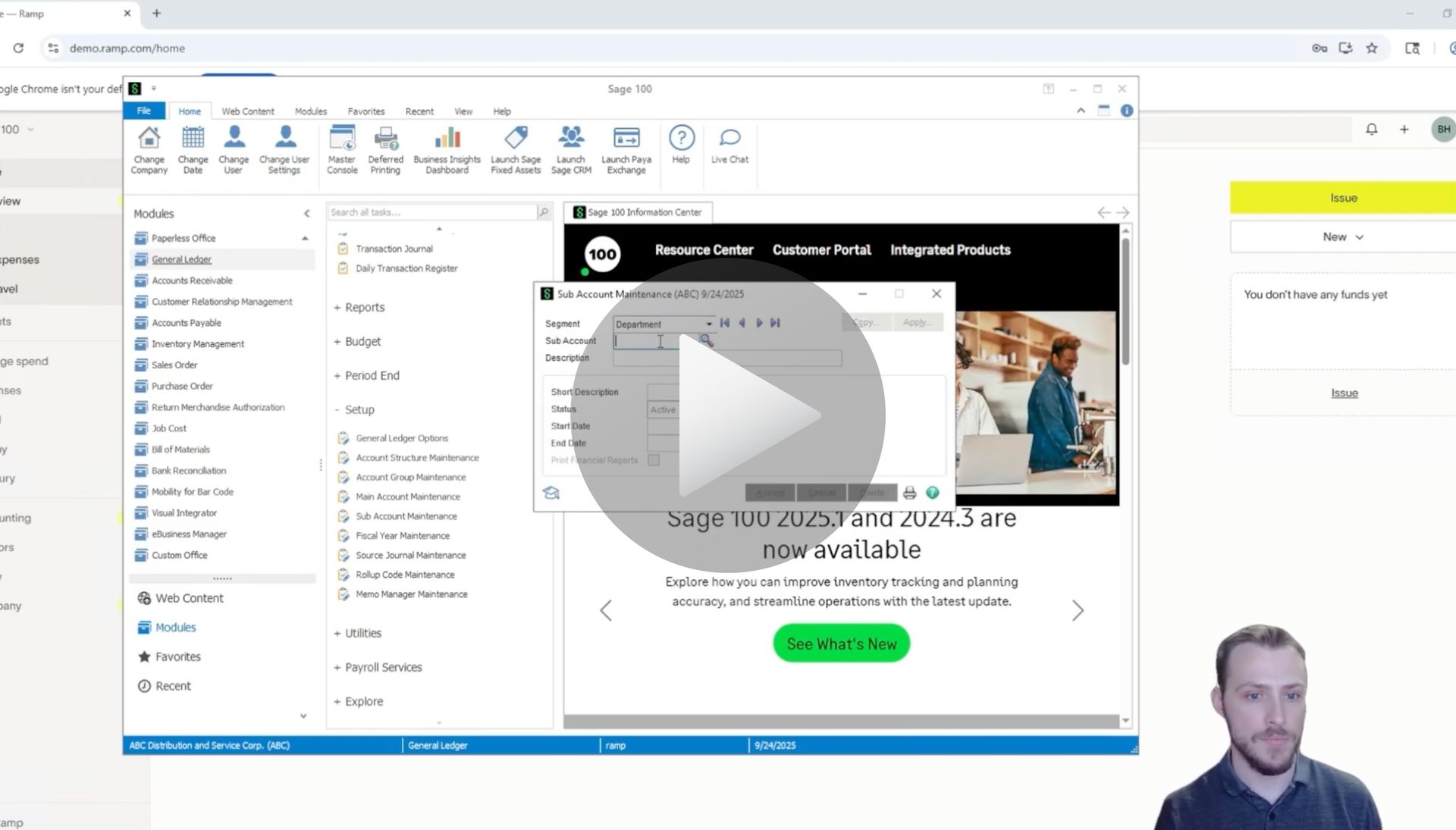
How to Create a Vendor & Sync for Ramp to Sage 100

Sage 100 User Guide: Creating & Syncing a Vendor for Ramp to Sage 100 with AnyWare Apps Integration

Keeping vendor information consistent across systems is essential for smooth accounts payable. With RAMP and Sage 100 connected through the AnyWare Apps integration, you can create a vendor once and have it automatically available in both platforms.

Step 1: Creating a Vendor in RAMP

1. Open RAMP and navigate to the vendor creation screen.
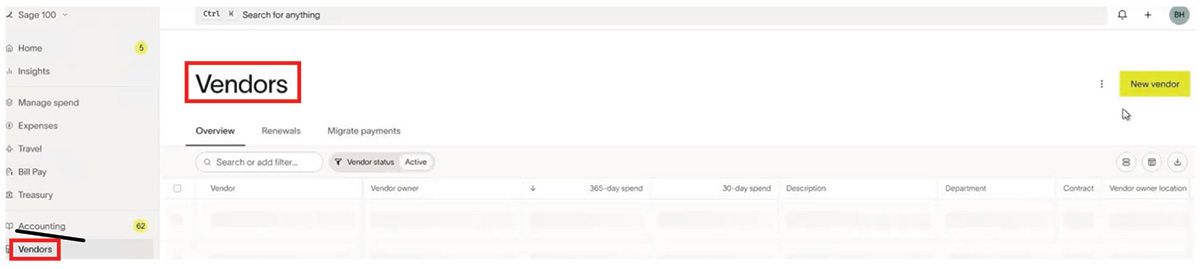
Sage 100 to Ramp Integration User Guide Documentation

2. Enter the vendor name — for this demo, we’ll use GA Test Vendor.
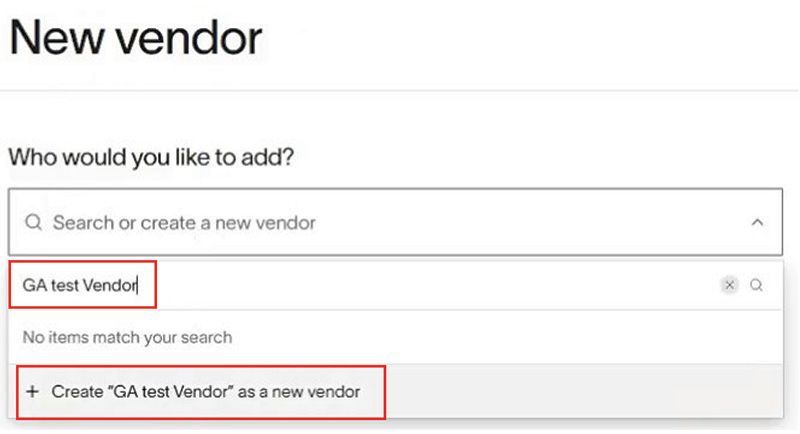
Sage 100 to Ramp Integration User Guide Documentation

3. Input the state, as it is required.

Sage 100 to Ramp Integration User Guide Documentation

4. Enter the vendor contact information, including the email address, which is also mandatory.
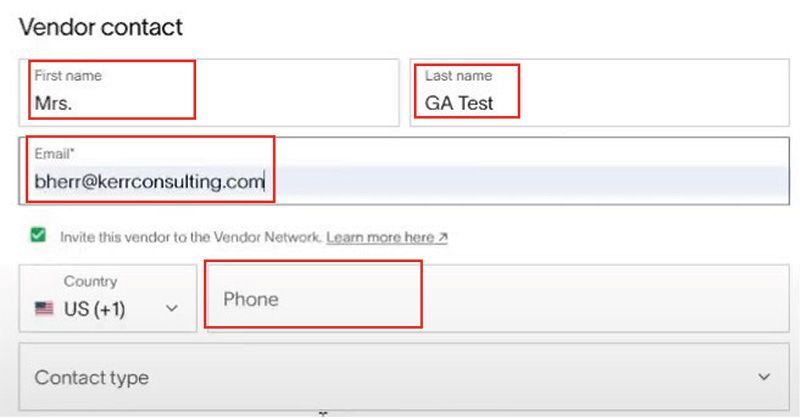
Sage 100 to Ramp Integration User Guide Documentation

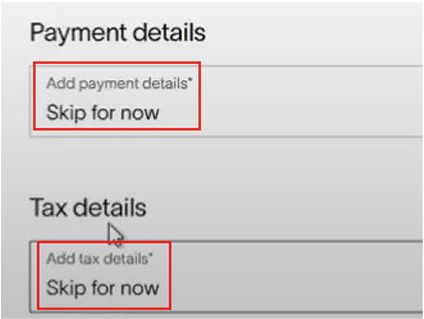
5. Enter payment and tax details.

Sage 100 to Ramp Integration User Guide Documentation

6. Click Create Vendor (bottom right of screen) once all required fields are complete.

Syncing the Vendor to Sage 100
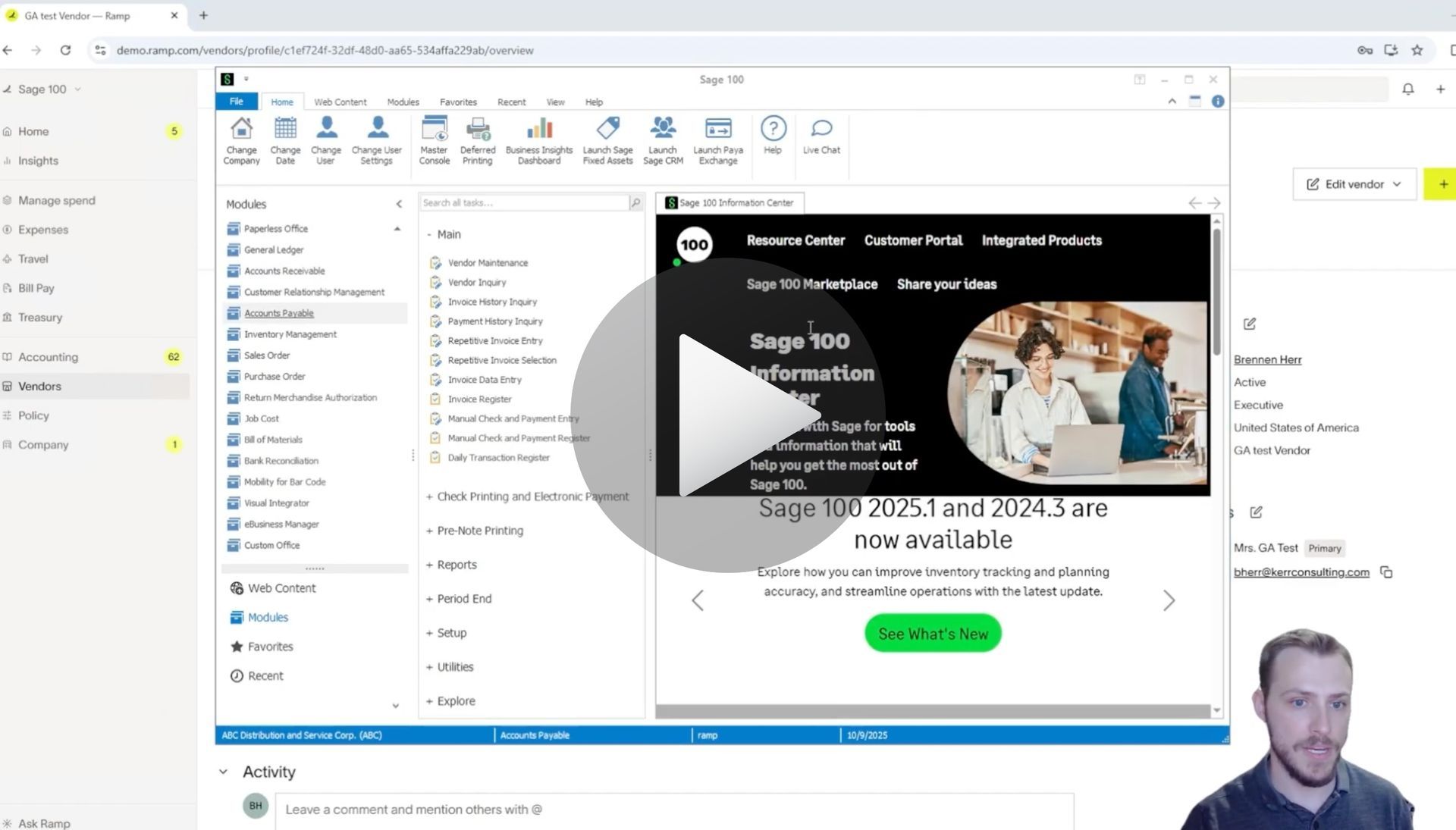
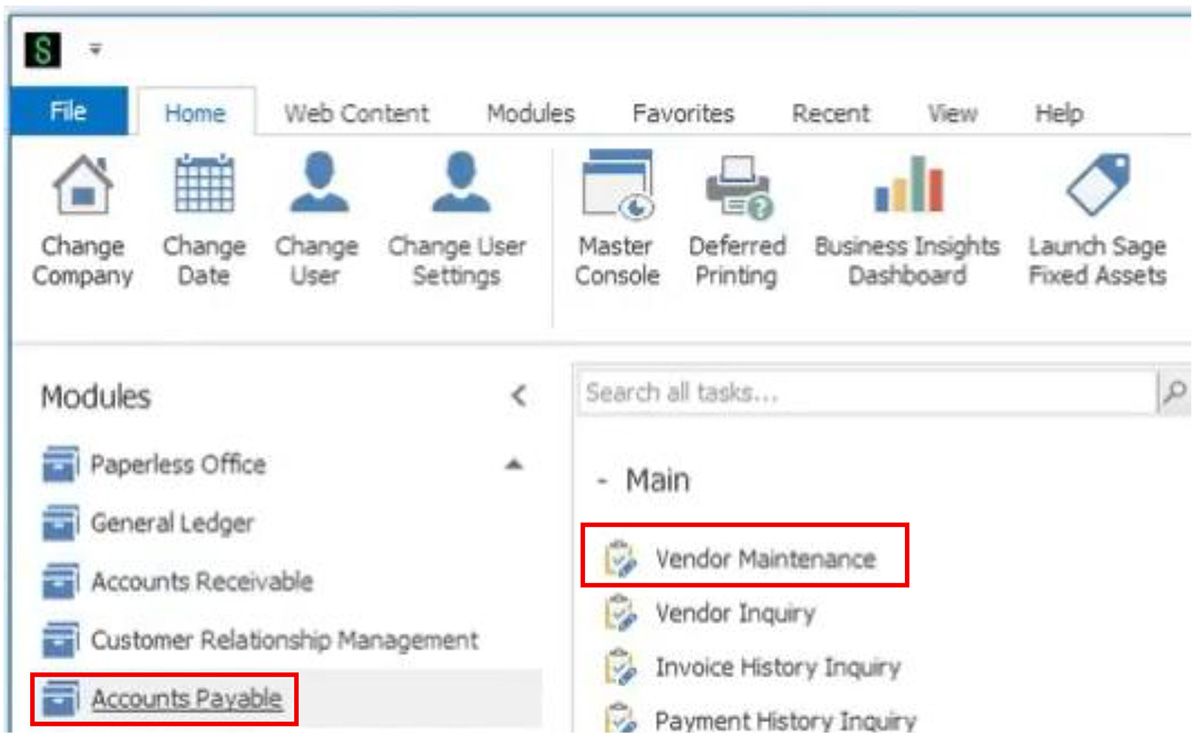
1. Open Sage 100 and go to Accounts Payable → Vendor Maintenance.
Sage 100 to Ramp Integration User Guide Documentation

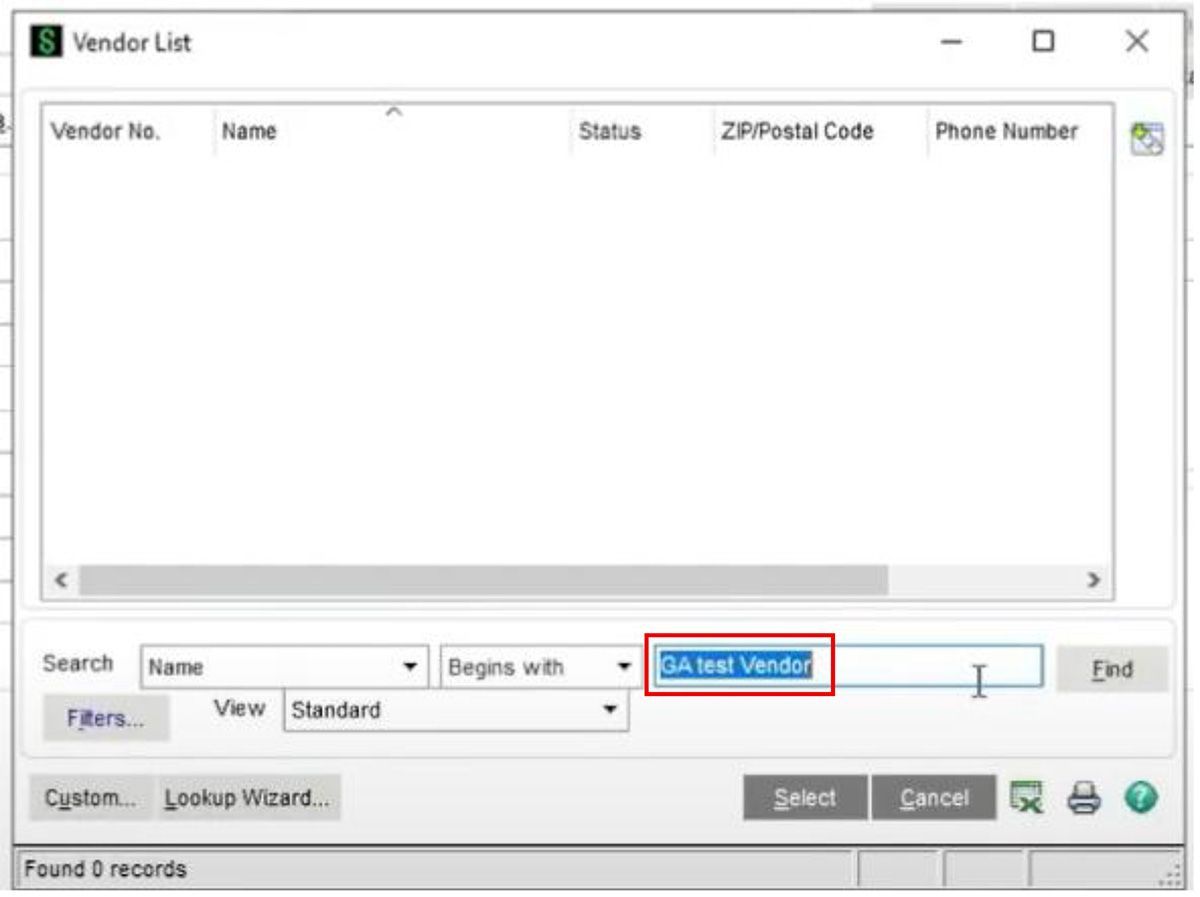
2. Search for your newly created vendor. Initially, it will not appear in the list.
Sage 100 to Ramp Integration User Guide Documentation

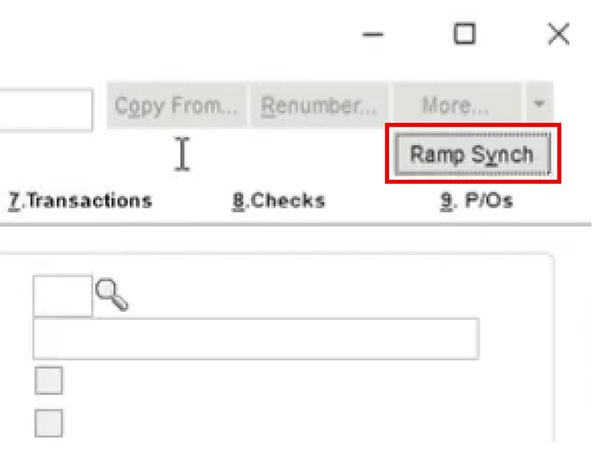
3. Trigger the RAMP Sync. This can be done manually if immediate syncing is required. In your environment, the integration will automatically sync vendors on a scheduled basis.
Sage 100 to Ramp Integration User Guide Documentation

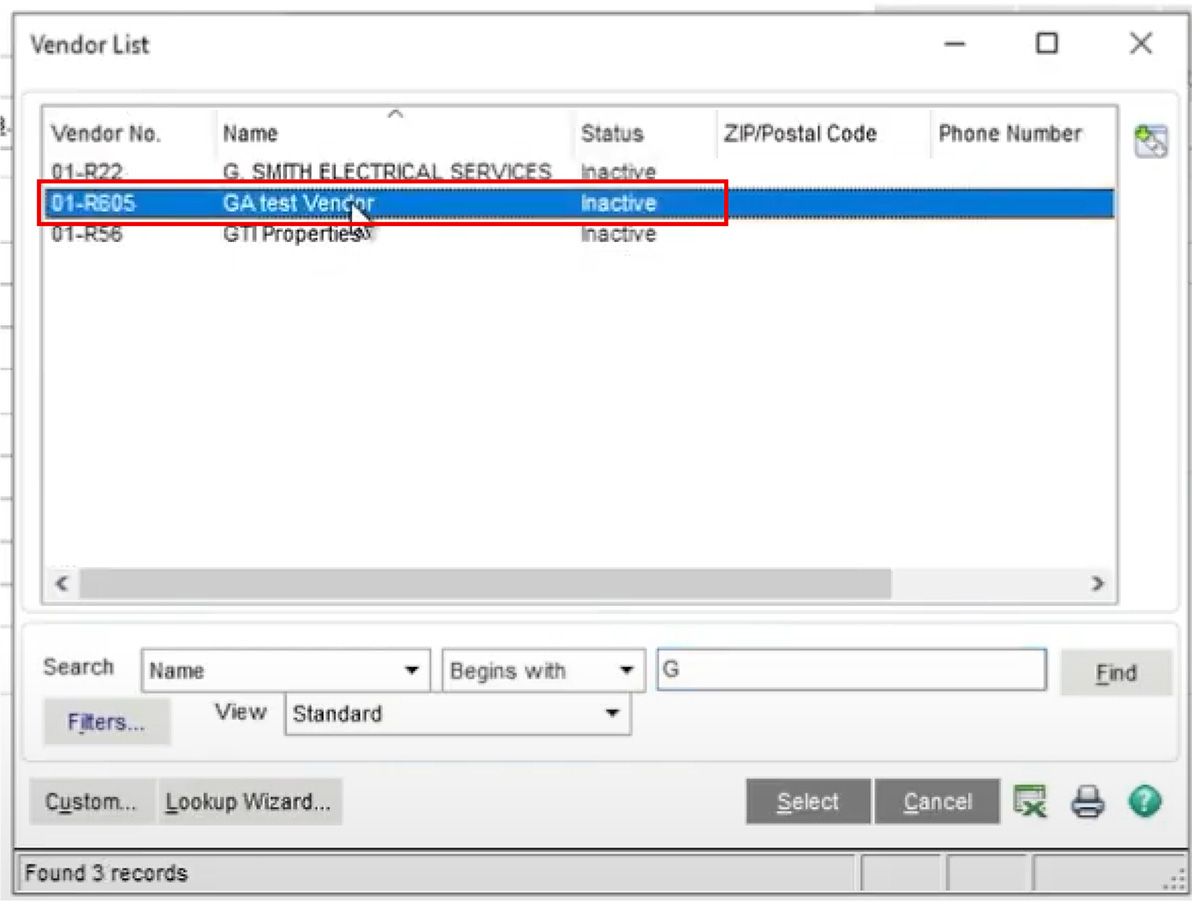
4. After the sync is complete, search for the vendor again. You should now see GA Test Vendor listed, including the email and state information entered in RAMP.
Sage 100 to Ramp Integration User Guide Documentation

Why This Matters

Syncing vendors from RAMP to Sage 100 eliminates duplicate data entry, saving time and reducing errors. Vendor information is accurate and consistent across both platforms, allowing your accounts payable team to work more efficiently with confidence that vendor details are up to date.


This workflow ensures your vendor records are accurately created and synced, keeping your financial systems aligned and your accounts payable process streamlined.

Articles 📑

February 2, 2026
Sage 100 User Guide: Syncing Payments for Ramp to Sage 100 with AnyWare Apps Integration
February 2, 2026
Sage 100 User Guide: Syncing Reimbursements for Ramp to Sage 100 with AnyWare Apps Integration
February 2, 2026
User Guide
December 29, 2025
Sage 300 User Guide: How to Create a Vendor in Ramp and Sync to Sage 300 ERP
December 29, 2025
Sage 300 User Guide: Create and sync a bill from Ramp spend management software to Sage 300 ERP via the AnyWare Apps connector
December 29, 2025
Sage 300 User Guide: How to Sync Ramp Credit Card Transactions to Sage 300 ERP Automatically with AnyWare Apps Integration
November 24, 2025
Sage 300 User Guide: How to Edit a GL Account in Sage 300 and Sync Changes to RAMP with AnyWare Apps Connector
November 24, 2025
Sage 300 User Guide: How to Process Manual Payments in Sage 300 and RAMP Simultaneously via the AnyWare Apps Integration
November 13, 2025
Sage 300 User Guide: Syncing Optional Fields via the AnyWare Apps Integration
November 12, 2025
Sage 300 User Guide: Syncing Payments for Ramp to Sage 300 With AnyWare Apps Integration
November 12, 2025
Sage 300 User Guide: Creating Vendors in Sage 300 and Syncing to Ramp with AnyWare Apps Integration
November 3, 2025
User Guide

Videos ▶️

How to create and sync vendors for Ramp to Sage 100
By Brennen Herr November 4, 2025
Learn how to create and sync vendors for Ramp to Sage 100 with AnyWare Apps integration.
How to Sync Reimbursements for Ramp to Sage 100 with AnyWare Apps Integration
By Brennen Herr November 4, 2025
Learn how to sync reimbursements for Ramp to Sage 100 with AnyWare Apps integration.
How to Sync Payments for Ramp to Sage 100 with AnyWare Apps
By Brennen Herr November 4, 2025
Learn how to sync payments for Ramp to Sage 100 with AnyWare Apps integration
By Brennen Herr November 4, 2025
Syncing Credit Card Transactions for Ramp to Sage 100 with AnyWare Apps Integration
Creating a bill and syncing for Ramp to Sage 100
By Brennen Herr November 4, 2025
Learn how to createa bill and sync for Ramp to Sage 100 with AnyWare Apps integration.
Syncing GL Account for Ramp to Sage 100
By Brennen Herr November 4, 2025
Learn how to create and sync GL Accounts from Ramp to Sage 100 with AnyWare Apps.
ramp financial corporate credit card software integration to Sage 300 accounting ERP solution

Time is money.

Book your discovery call with AnyWare Apps

Sage 300 Discovery Request

Our Solution for Your Accounting

Our integration streamlines your financial workflows by directly integrating credit card transactions, employee reimbursements, and vendor invoices into your Sage system. This seamless connection...

Eliminates manual data entry, reduces errors, and ensures your books are always accurate and up to date

An icon image representing the integration between Ramp and Sage ERP

Learn More From AnyWare Apps

February 2, 2026
Sage 100 User Guide: Syncing Payments for Ramp to Sage 100 with AnyWare Apps Integration
February 2, 2026
Sage 100 User Guide: Syncing Reimbursements for Ramp to Sage 100 with AnyWare Apps Integration
February 2, 2026
User Guide
December 29, 2025
Sage 300 User Guide: How to Create a Vendor in Ramp and Sync to Sage 300 ERP
December 29, 2025
Sage 300 User Guide: Create and sync a bill from Ramp spend management software to Sage 300 ERP via the AnyWare Apps connector
December 29, 2025
Sage 300 User Guide: How to Sync Ramp Credit Card Transactions to Sage 300 ERP Automatically with AnyWare Apps Integration