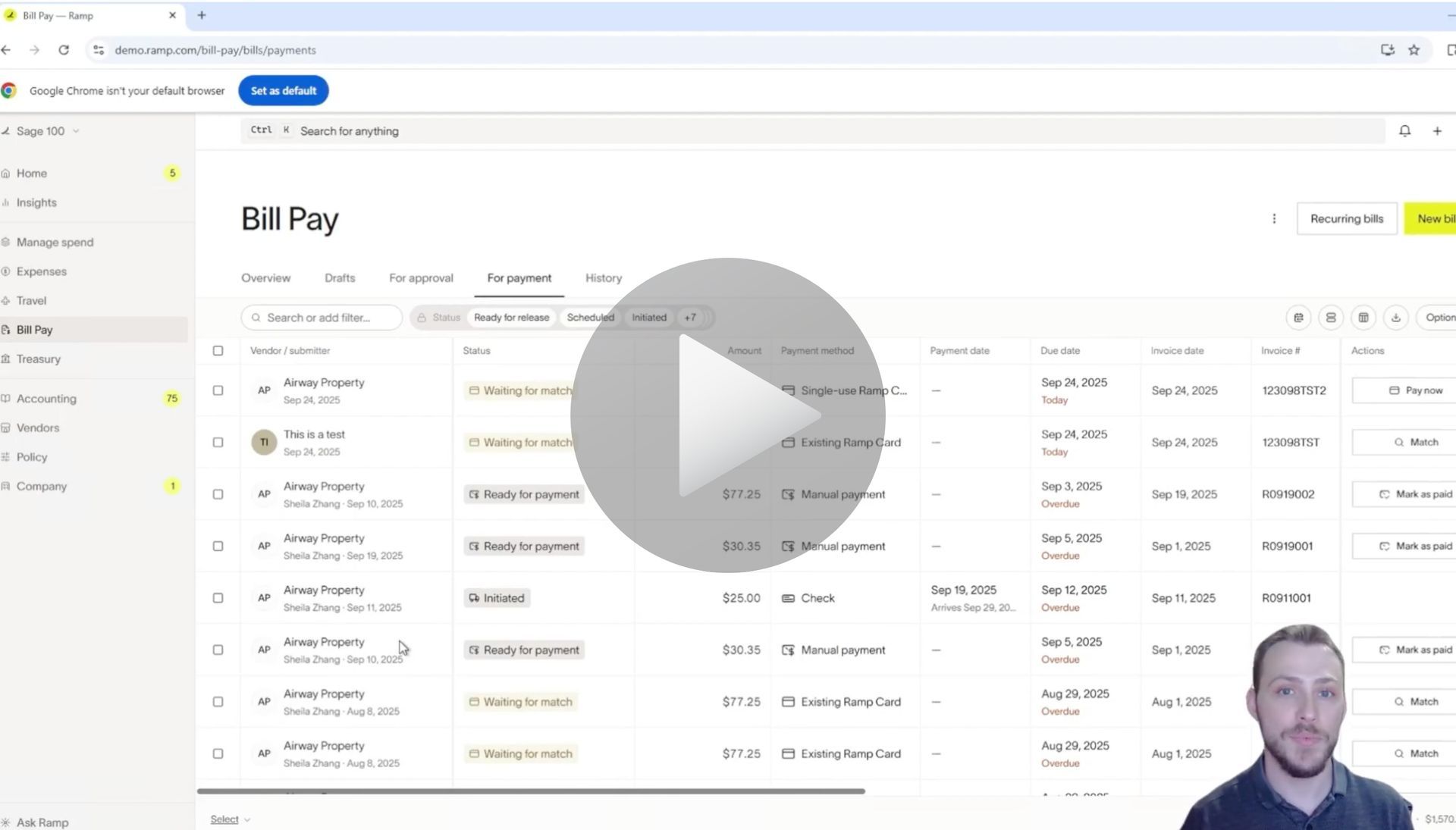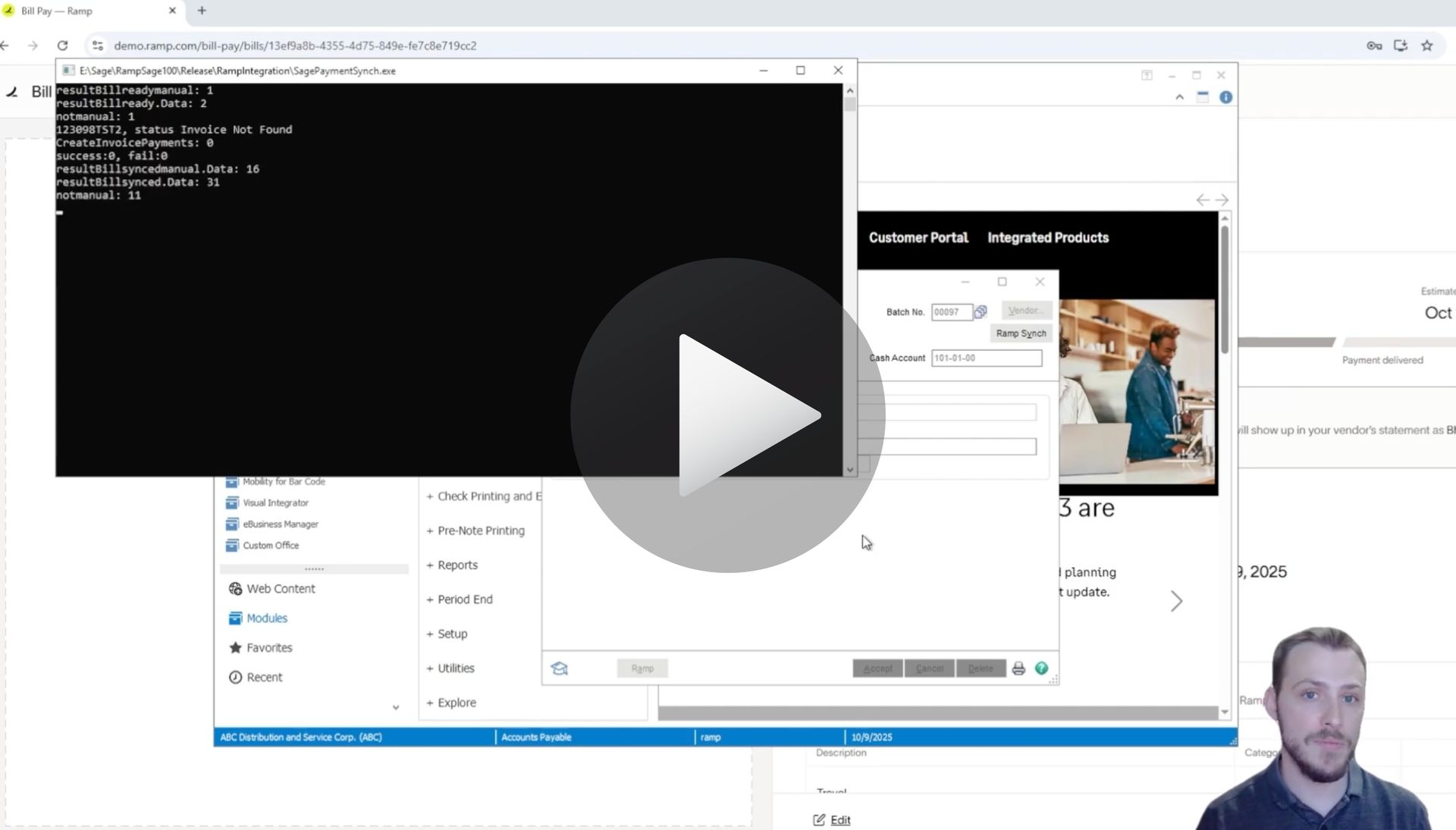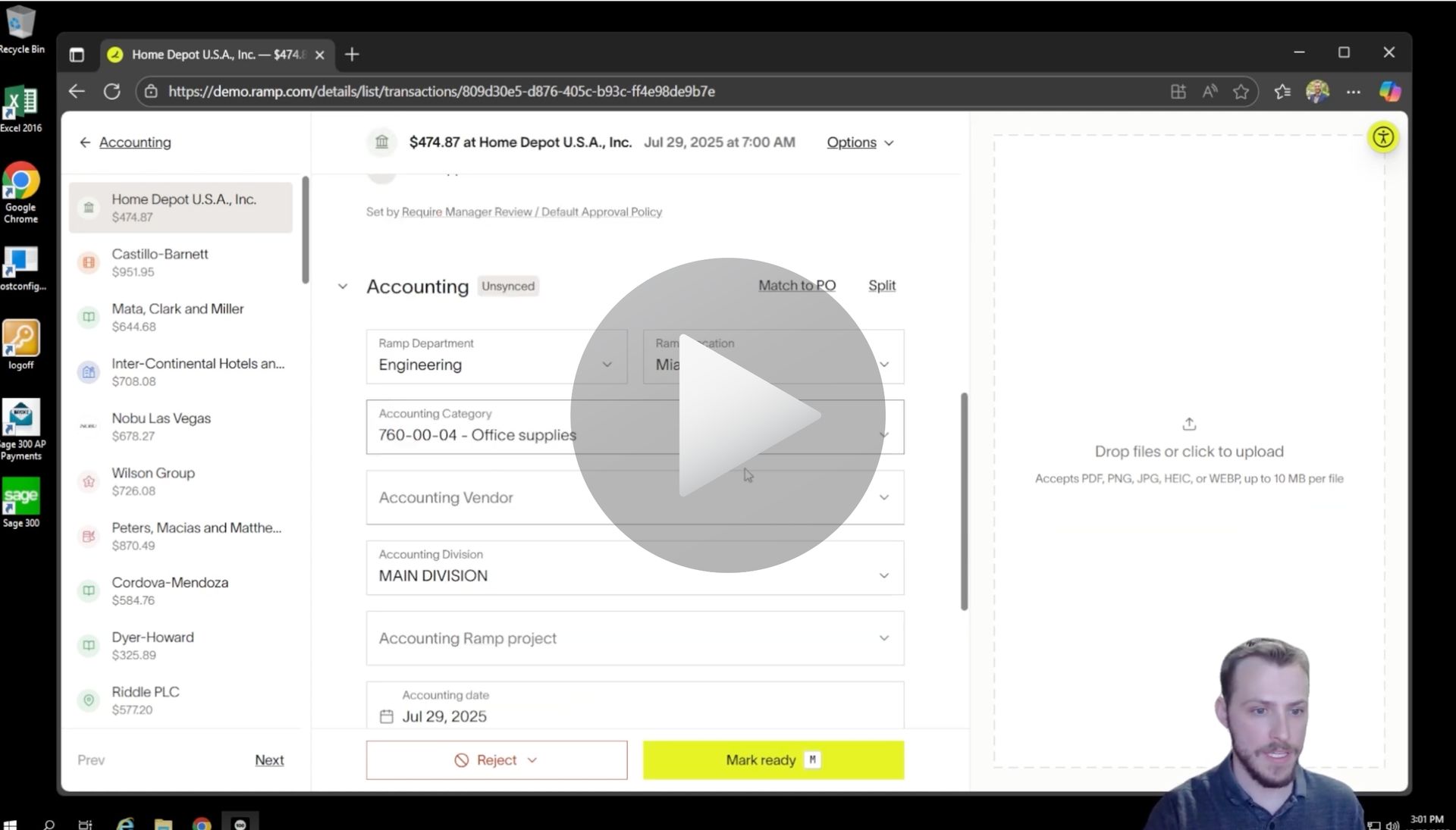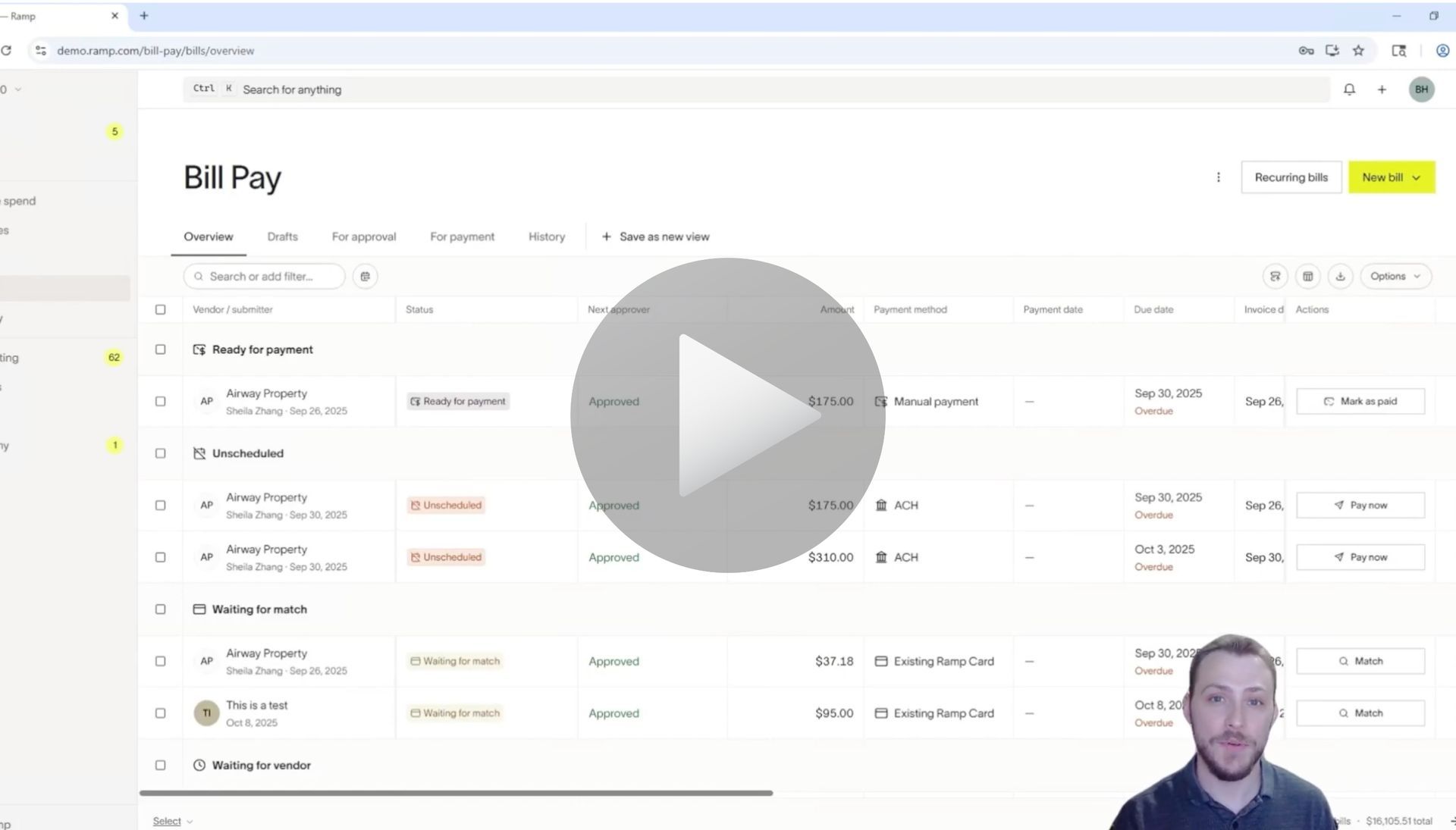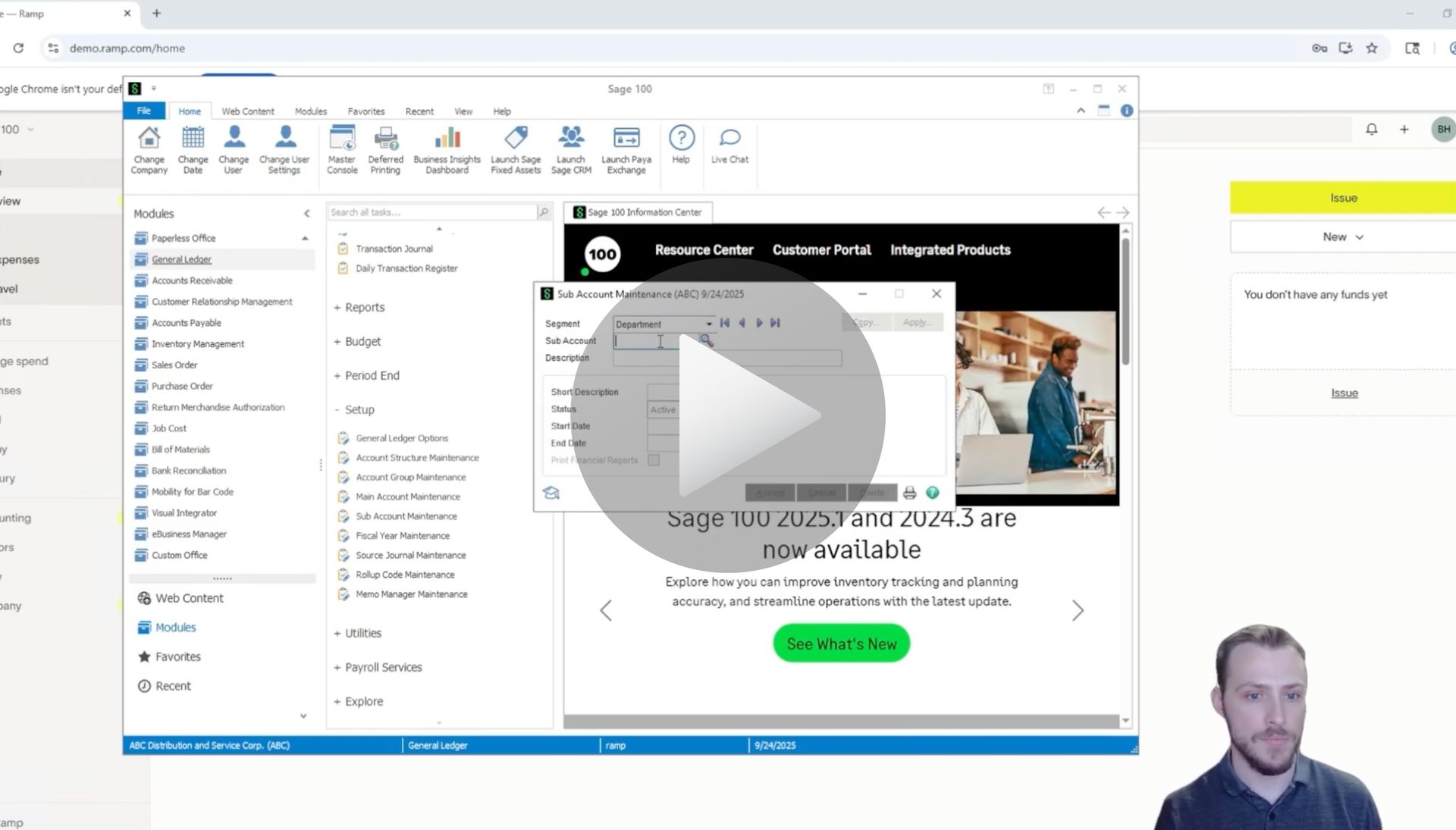
How to Sync Reimbursements for Ramp to Sage 100

Sage 100 User Guide: Syncing Reimbursements for Ramp to Sage 100 with AnyWare Apps Integration

Keeping reimbursements organized and accurately reflected in your accounting system is easier than ever with RAMP and Sage 100. In this guide, we’ll walk through how to sync a reimbursement from RAMP into Sage 100 using the AnyWare Apps connector.

Step 1: Review the Reimbursement in RAMP

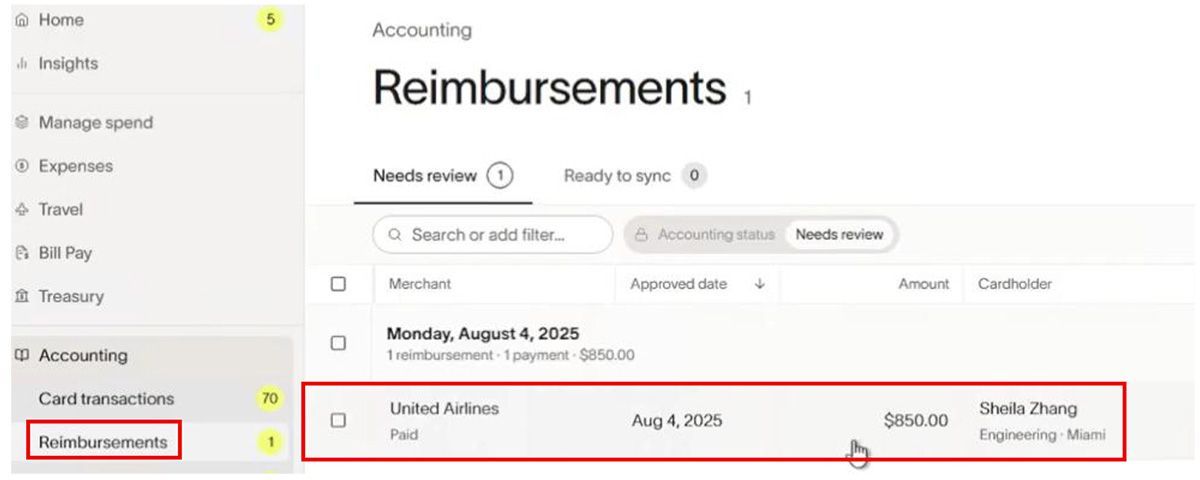
Start in RAMP by navigating to Accounting → Reimbursements:
1. Locate the reimbursement that needs review — in this example, $850.

2. Click on the reimbursement to review the details.
Sage 100 to Ramp Integration User Guide Documentation

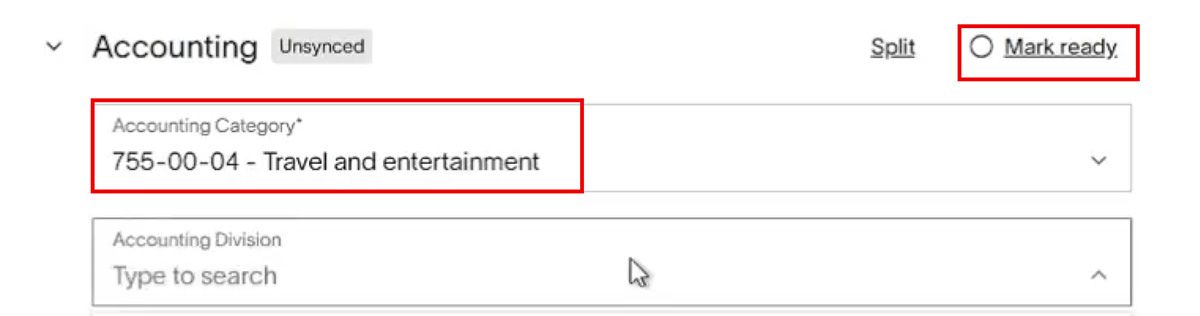
3. Ensure the Accounting Category is filled out correctly.

4. Mark the reimbursement as Ready for Sync.
Sage 100 to Ramp Integration User Guide Documentation

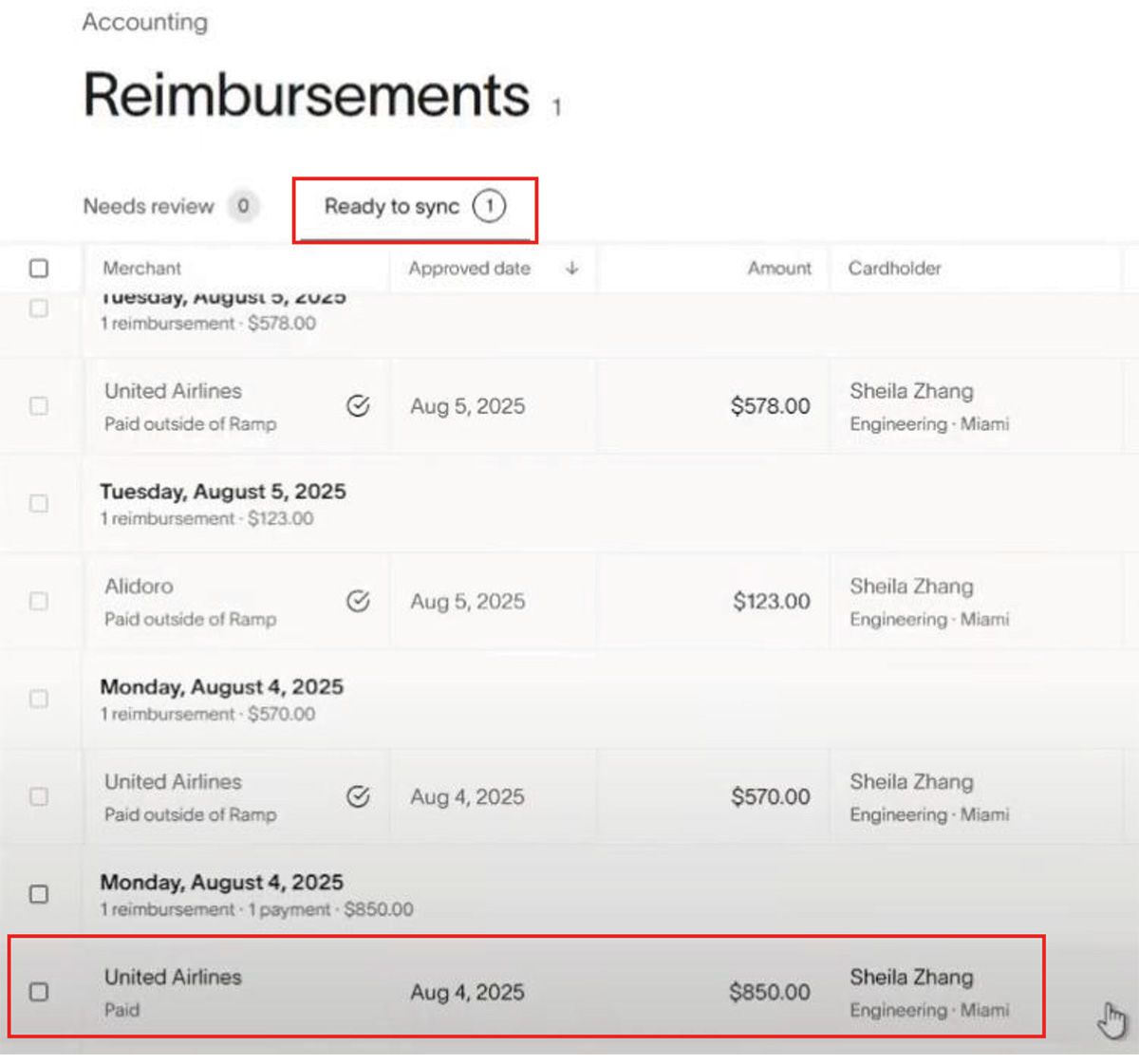
5. Confirm it appears in the Ready to Sync section of RAMP.
Sage 100 to Ramp Integration User Guide Documentation

Step 2: Sync the Reimbursement to Sage 100

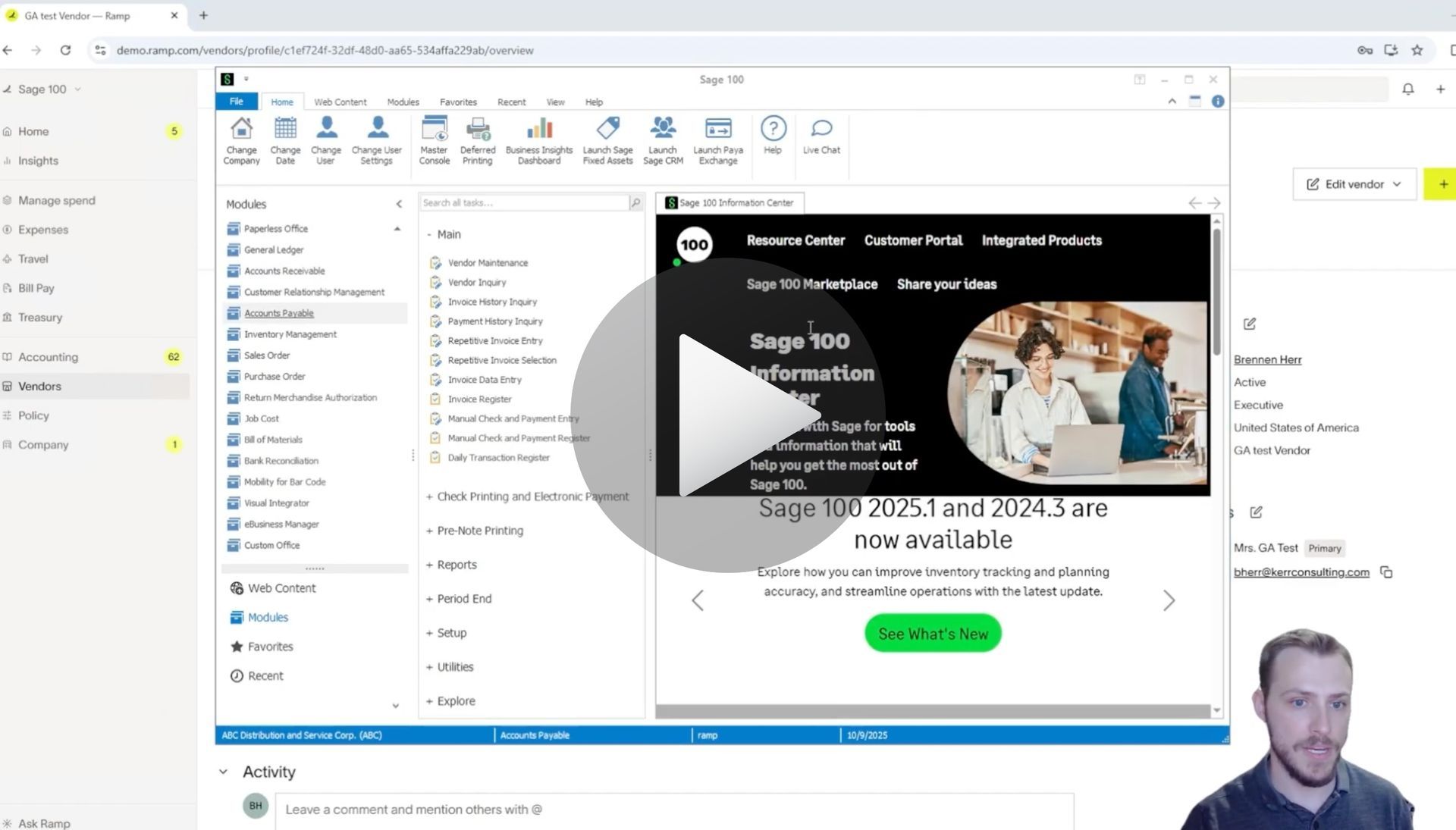
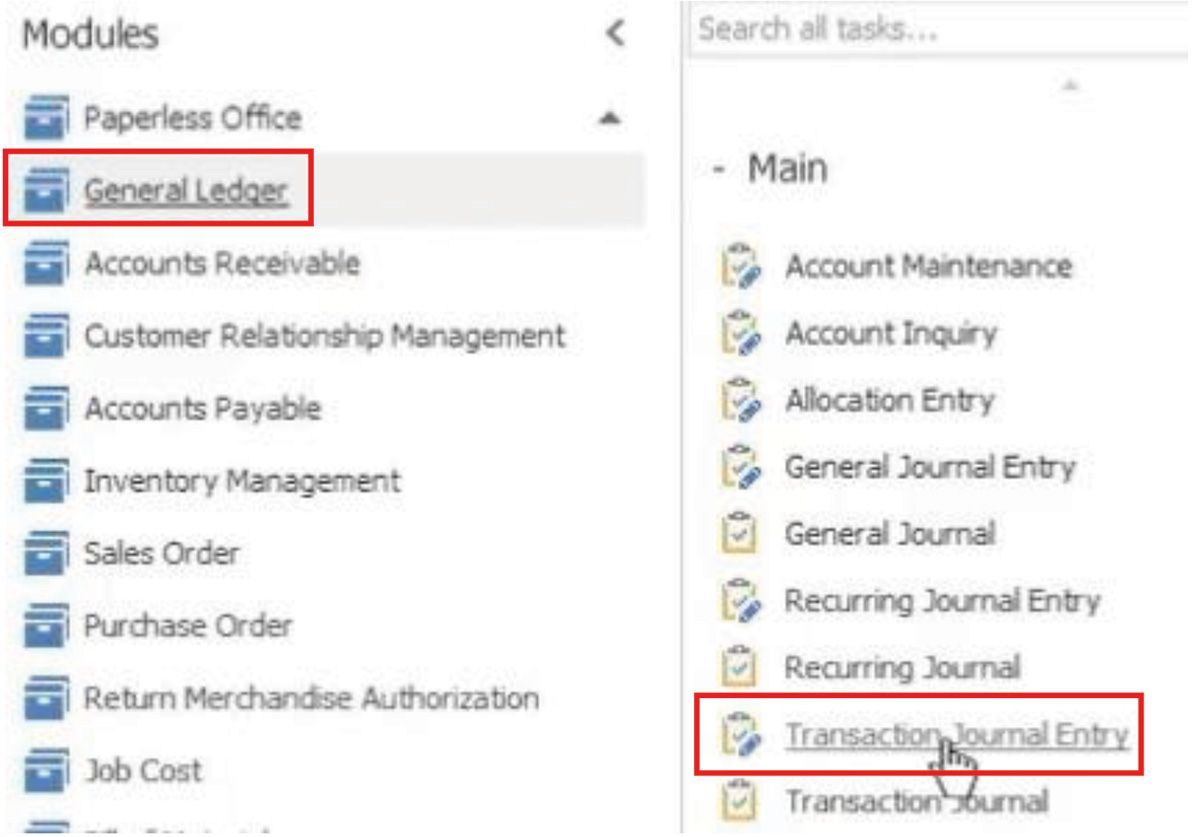
Switch over to Sage 100 → General Ledger → Transaction Journal Entry:
Sage 100 to Ramp Integration User Guide Documentation

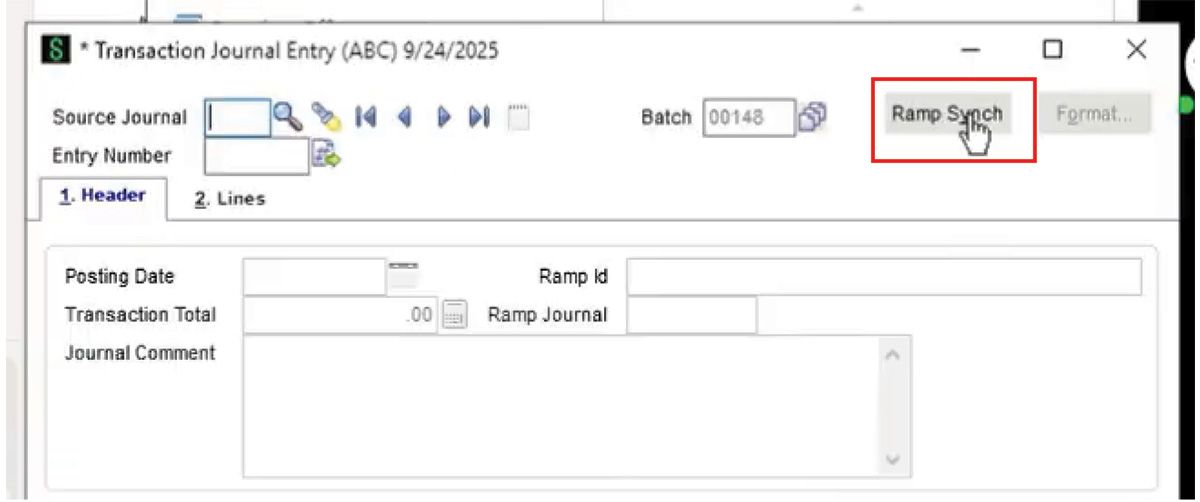
1. Trigger the RAMP Sync to pull the reimbursement into Sage 100.

  • The integration automatically syncs on a regular schedule.
  • If immediate syncing is needed, you can trigger a manual sync.
Sage 100 to Ramp Integration User Guide Documentation

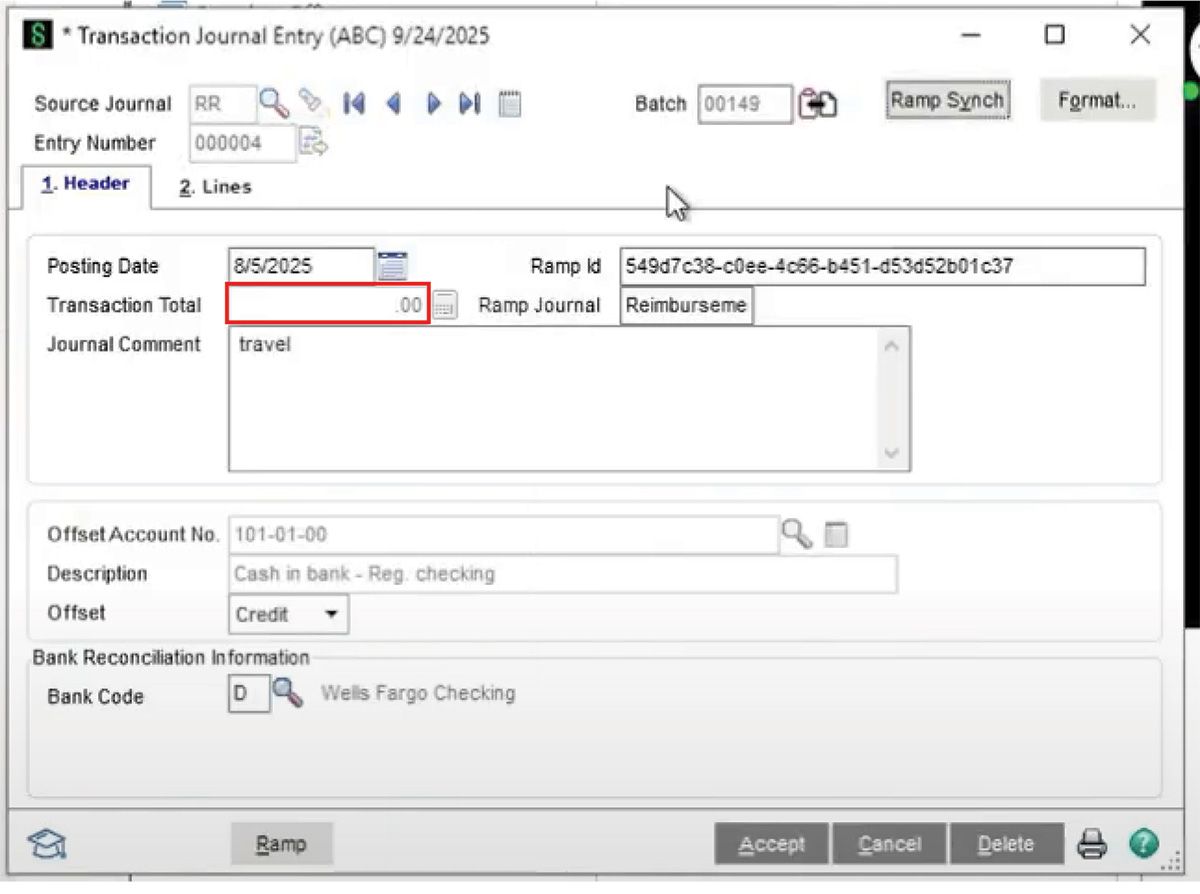
2. Locate the newest batch that was synced.

3. Verify that the reimbursement appears with the correct amount ($850 for travel in this example).
Sage 100 to Ramp Integration User Guide Documentation

Step 3: Verify the Reimbursement
Back in RAMP:

  1. Refresh the Ready to Sync page — the reimbursement should disappear, indicating it has successfully synced.
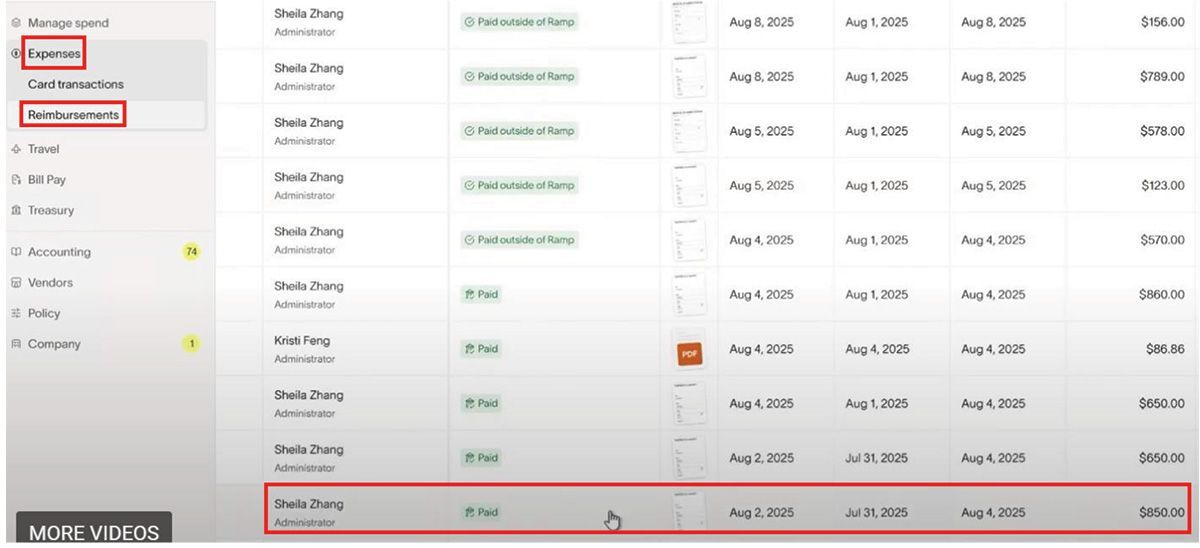
  2. Navigate to Expenses → Reimbursements → History.
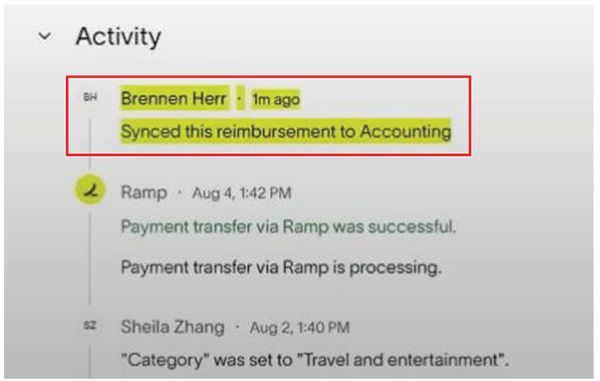
  3. Locate the reimbursement — it should now show as Paid and Synced to Accounting.
Sage 100 to Ramp Integration User Guide Documentation

Why This Matters

Using AnyWare Apps to sync reimbursements:

  • Eliminates manual data entry errors.
  • Keeps reimbursements accurately tracked across RAMP and Sage 100.
  • Saves time for finance teams, allowing them to focus on approvals and reconciliation instead of manual transfers.


This workflow ensures your reimbursements are accurately reflected in both systems, streamlining your finance operations and reducing errors.

Articles 📑

February 2, 2026
Sage 100 User Guide: Syncing Payments for Ramp to Sage 100 with AnyWare Apps Integration
February 2, 2026
User Guide
February 2, 2026
Sage 100 User Guide: Creating & Syncing a Vendor for Ramp to Sage 100 with AnyWare Apps Integration
December 29, 2025
Sage 300 User Guide: How to Create a Vendor in Ramp and Sync to Sage 300 ERP
December 29, 2025
Sage 300 User Guide: Create and sync a bill from Ramp spend management software to Sage 300 ERP via the AnyWare Apps connector
December 29, 2025
Sage 300 User Guide: How to Sync Ramp Credit Card Transactions to Sage 300 ERP Automatically with AnyWare Apps Integration
November 24, 2025
Sage 300 User Guide: How to Edit a GL Account in Sage 300 and Sync Changes to RAMP with AnyWare Apps Connector
November 24, 2025
Sage 300 User Guide: How to Process Manual Payments in Sage 300 and RAMP Simultaneously via the AnyWare Apps Integration
November 13, 2025
Sage 300 User Guide: Syncing Optional Fields via the AnyWare Apps Integration
November 12, 2025
Sage 300 User Guide: Syncing Payments for Ramp to Sage 300 With AnyWare Apps Integration
November 12, 2025
Sage 300 User Guide: Creating Vendors in Sage 300 and Syncing to Ramp with AnyWare Apps Integration
November 3, 2025
User Guide

Videos ▶️

How to create and sync vendors for Ramp to Sage 100
By Brennen Herr November 4, 2025
Learn how to create and sync vendors for Ramp to Sage 100 with AnyWare Apps integration.
How to Sync Reimbursements for Ramp to Sage 100 with AnyWare Apps Integration
By Brennen Herr November 4, 2025
Learn how to sync reimbursements for Ramp to Sage 100 with AnyWare Apps integration.
How to Sync Payments for Ramp to Sage 100 with AnyWare Apps
By Brennen Herr November 4, 2025
Learn how to sync payments for Ramp to Sage 100 with AnyWare Apps integration
By Brennen Herr November 4, 2025
Syncing Credit Card Transactions for Ramp to Sage 100 with AnyWare Apps Integration
Creating a bill and syncing for Ramp to Sage 100
By Brennen Herr November 4, 2025
Learn how to createa bill and sync for Ramp to Sage 100 with AnyWare Apps integration.
Syncing GL Account for Ramp to Sage 100
By Brennen Herr November 4, 2025
Learn how to create and sync GL Accounts from Ramp to Sage 100 with AnyWare Apps.
ramp financial corporate credit card software integration to Sage 300 accounting ERP solution

Time is money.

Book your discovery call with AnyWare Apps

Sage 300 Discovery Request

Our Solution for Your Accounting

Our integration streamlines your financial workflows by directly integrating credit card transactions, employee reimbursements, and vendor invoices into your Sage system. This seamless connection...

Eliminates manual data entry, reduces errors, and ensures your books are always accurate and up to date
An icon image representing the integration between Ramp and Sage ERP

Learn More From AnyWare Apps

February 2, 2026
Sage 100 User Guide: Syncing Payments for Ramp to Sage 100 with AnyWare Apps Integration
February 2, 2026
User Guide
February 2, 2026
Sage 100 User Guide: Creating & Syncing a Vendor for Ramp to Sage 100 with AnyWare Apps Integration
December 29, 2025
Sage 300 User Guide: How to Create a Vendor in Ramp and Sync to Sage 300 ERP
December 29, 2025
Sage 300 User Guide: Create and sync a bill from Ramp spend management software to Sage 300 ERP via the AnyWare Apps connector
December 29, 2025
Sage 300 User Guide: How to Sync Ramp Credit Card Transactions to Sage 300 ERP Automatically with AnyWare Apps Integration